Export Prospects to CSV, Filters and All
The LeadScout Prospect List now exports exactly what you are looking at. Filter or search the list and pick Export filtered, or check the rows you want and pick Export selected. Either way you get a prospects.csv file with addresses, phone numbers, statuses, owners, tags and notes. Exports of more than 5,000 prospects are prepared in the background, and LeadScout emails you a download link that works for 7 days.
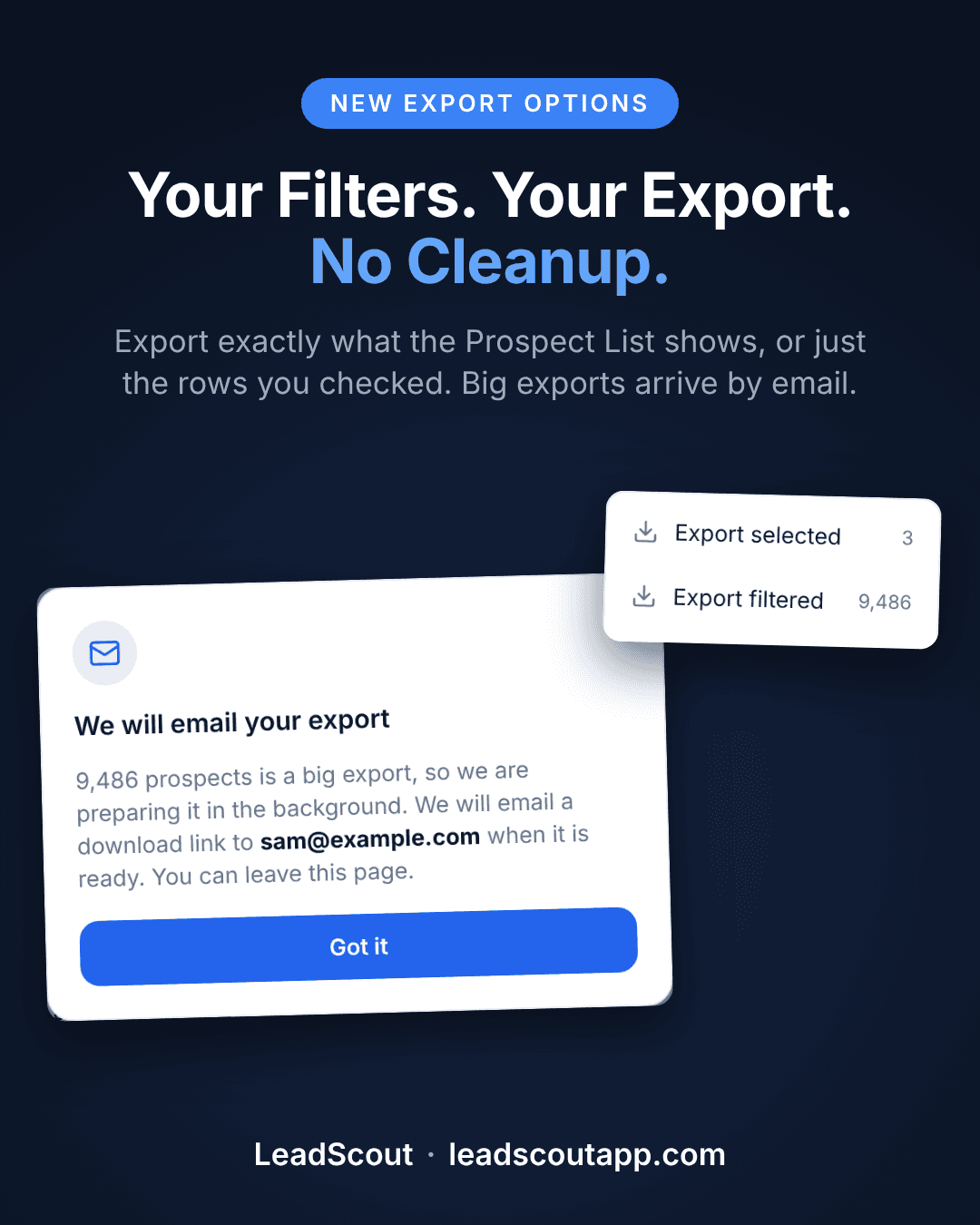
You filter the Prospect List down to the 40 homes you actually care about. Interested, in one zip code, assigned to one rep. Then you hit Export and get a spreadsheet of every prospect you have ever pinned.
That is fixed. The Prospect List now exports exactly what it is showing you.
What's new
- Export filtered. Every prospect that matches the list's filters and search, including the ones on later pages. With no filters set it reads Export all.
- Export selected. Only the rows you checked, with the count right there in the menu.
- Big exports by email. Past 5,000 prospects, LeadScout builds the file in the background and emails you a download link. No more watching a tab spin.
All three are live now in the web app, on every plan.
Export what the list shows
Filter and search the list until it shows the prospects you want. Status, territory, assigned rep, tags, a street name in the search box, any combination. Then click Actions and pick Export filtered.
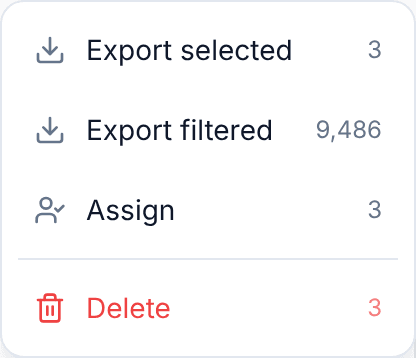
The number next to each option is what you are about to download, so there is no guessing. Up until now the export only carried the status filter, which meant a search or a territory filter on screen never made it into the file. Now the export runs the same query the list does, every time.
Or just the rows you checked
Check the rows you want and pick Export selected. Useful when you have eyeballed a page and want those eleven homes in a spreadsheet, not the other nine thousand. The option stays greyed out until something is checked.
Big exports come by email
Pulling a whole year of prospects is a big file, and a big file used to mean sitting on the page hoping nothing interrupted it.
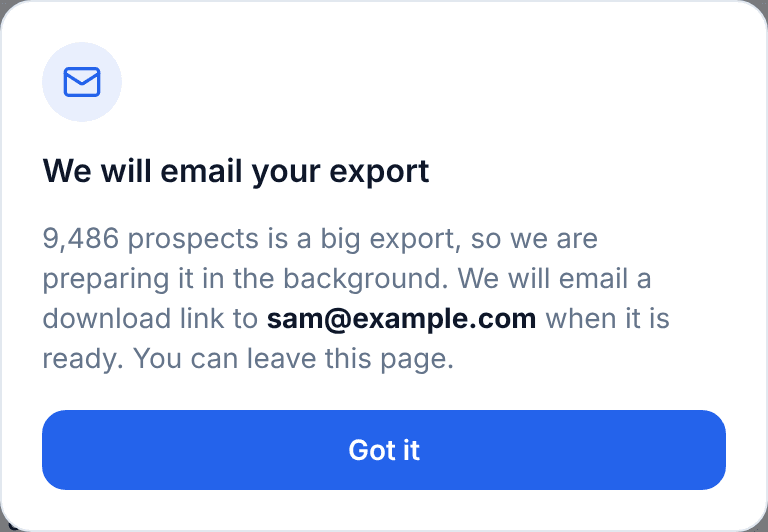
Now anything over 5,000 prospects is prepared in the background. You get a note telling you where the link is going, and you can close the tab or go back to the map.
When the file is ready, the email links to a page with a Download CSV button.

The link works for 7 days, and only the person who started the export can open it. If something goes wrong on our side, you get an email that says so instead of silence.
What you get in the file
One row per prospect: name, both phone numbers, email, the full address, latitude and longitude, current status, assigned rep, tags, the latest note, who added it, the source and the date it was created. Status changes come through as their own columns, so you can see how a home moved from Not Home to Interested to Sold.
That makes the file ready to use as it is. Upload a filtered list to your CRM, hand the office a call list, send a door-hanger run to one neighborhood, or review what a territory did last month.
Who can export
Anyone on the team can export from the web app, on every plan, at no extra cost. An export only ever includes prospects that person can already see in their own list, so a rep who only sees their own assignments exports only those.
Export is a web feature. Reps keep knocking, pinning and updating statuses on their phones, and whoever needs the spreadsheet does it from a computer.
The step-by-step version lives in Import and export prospects. If you are still deciding on LeadScout, see how it finds homeowners worth knocking with the live demo, or compare plans on our pricing page.
Frequently Asked Questions
How do I export prospects from LeadScout?▼
What is the difference between Export selected and Export filtered?▼
What columns are in the export file?▼
Is there a limit on how many prospects I can export?▼
How long does the emailed download link work?▼
Who on my team can export prospects?▼
Can I export from the mobile app?▼
What do people use the export for?▼
Ready to put it to work?
LeadScout gives your team a prospect list they can filter, work and export in two clicks. Get started free today.
Start for Free